Tuesday, January 27, 2009

Download videos from Youtube

There is this very nifty thing that comes along with fedora, they are:
youtube-dl and ffmpeg. If you don't already have them on your system then you can install it through yum.

yum install youtube-dl ffmpeg

You can download any video from youtube by youtube-dl and convert them to your desired format using ffmpeg.

To download the video from youtube:

$ youtube-dl <url> -o <filename>

eg. $ youtube-dl http://in.youtube.com/watch?v=mCMuDP0Qhq0 -o AmericanPie.flv

And to convert them to avi format

$ ffmpeg -i AmericanPie.flv americanPie.avi

or

$ ffmpeg -i AmericanPie.flv americanPie.mpg

to convert them to mpg.

you can convert the videos to any format that you want. Just go through the man page of youtube-dl and ffmpeg to discover all their abilities. :)

Thursday, January 15, 2009

Fedora 10 - Fire it up


I was thinking of doing it since long, and finally I did it today. Yes !!! today i moved on from Fedora 7 to Fedora 10. I also have used Fedora 9 but it didn't impressed me much, so I switched back to using Fedora 7. This release of Fedora is what Fedora core 6, for the previous versions of Fedora.

This release has a lot of improvements and a loads of eye candy. I specially liked the rhgb replacement called Plymouth. I loved the "Solar" plymouth plugin. It took me some work to get the Solar theme working, but the work was worth it :)

For those of you who are still trying to get the Plymouth theme working, here it goes. Open /etc/grub.conf in your favorite text editor and add the line vga=ask at the end of the "kernel" line, and save the file and reboot the system. When Fedora boots, it will show the possible VGA resolutions for your monitor. Select the resolution that best fits your monitor, and remember the code. After logging in the system, again edit the /etc/grub.conf file and replace vga=ask with the code you selected preceded by 0x. For example vga=0x31b

Monday, January 12, 2009

Installing Linux/Fedora 10 on a Windows machine without CD

Have you ever faced a condition where you have to install Linux on a machine that is running windows and it doesn’t have a cdrom drive or there is no Linux installation CD available. Well there is another installation method that can be used to boot Linux installation program on windows machine and install Linux over the network.

Procurements:
The first step is to download grub loader for windows. It can be downloaded from any of the grub4dos project sites like http://sourceforge.net/projects/grub4dos
Now from the downloaded archive extract the file named “grldr”. It is the grub loader file, and the file menu.lst. This is the menu options file. This completes the first step of the process.

The second step is to get the location of the site that hosts the Linux distribution that you want to install. For example you can get the Fedora 10 installation files hosted here: ftp://ftp.jaist.ac.jp/pub/Linux/Fedora/releases/10/Fedora/i386/os/
Now download the file “vmlinuz” and “initrd.img” from here. These files can be found in the “isolinux” folder.

After the above two steps you have:
1.The Grub loader (grldr)
2.The menu.lst file
3.vmlinuz file
4.initrd.img file.

These are all the bare essentials that you need to boot the Linux installation program and install Linux on your system. Place all these file in the root drive of your windows installation, normally its C drive [c:]

Configuration:
Edit your menu.lst file. Delete entire content from the file, and add the following text to it.

~~~~~~~~~ menu.lst ~~~~~~~~~~~~~~
timout=10
title Linux/Fedora Installation
kernel /vmlinuz
initrd /initrd.img
~~~~~~~~~~~~~~~~~~~~~~~~~~~~~~~
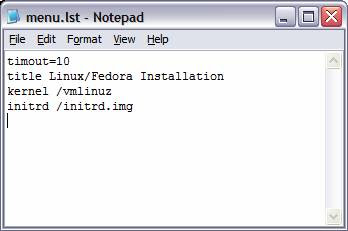


You menu.lst file should have this content only. Well it can have other setting, but all that are not necessary for the installation purpose. This is the lean mean configuration :)

The next step is to edit the windows boot.ini file. This file is normally c:\boot.ini, but it has its attribute as System, Hidden and Read-Only. If you can find the file, it’s well and good else to change the attributes open the windows command prompt and execute the following command:

attrib –s –h –r c:\boot.ini

After this step you can see the file boot.ini in your c:\ drive.
Now you need to edit this file. Open boot.ini in notepad, and append the following lines at the end of the file

c:\grldr=”Fedora Installation”
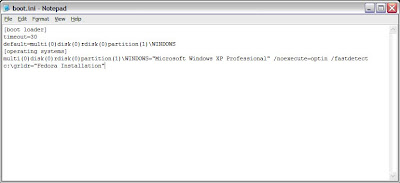


That’s it !!! All configuration completed.

What’s next ???
Nothing much, you just need to reboot your windows machine. But before rebooting please check that:
1.You have placed “grldr”,”vmlinuz”,”initrd.img” and “menu.lst” file in your root drive, mostly that’s gonna be c:\
2.You have edited your “menu.lst” file
3.You have edited your “boot.ini” file.

After these checklists, REBOOT.


After Reboot:
When your machine boots again, it will present you with a boot menu that says “Fedora Installation”. Select this option form the menu and hit enter. After this, you will be presented with a grub menu that says “Linux/Fedora Installation”. Select that option and again hit enter, and Viola !!!! You have booted the Linux Installation program.

Post steps:
Select the keyboard layout and the default language from the options that are presented. When the program asks for the installation media, select “URL” option and provide the URL from where you want to install your Linux distribution. Please note that this location has to be the same from where you have downloaded the “vmlinuz” and “initrd.img” files. In our case it will be ftp://ftp.jaist.ac.jp/pub/Linux/Fedora/releases/10/Fedora/i386/os/

It is also a good idea to set up your own ftp server, with the files extracted from the Fedora iso image, and provide its path here. This is a good idea if you do not have good internet connection, like mine :)

Hit enter and continue with the installation!!!

Saturday, December 27, 2008

Happy New Year and Happy Holidays :)

Hey,

After much work and completing my project at the right time, i am finally free to go to my home this weekend. This is a much needed break, that i was looking for, away from this place and away from my office, with my family. The last few months have been the most sadistic period of my life, though i don't have any reason for that. Hopefully, all this will change when i come back from my home.

Since there are only few days left for the new year, i was thinking of having a new year resolution, but nothing fruitful is in my mind as of now. Maybe i will write about this in a different post. I have brought a new winter wear for my little sister, hope she likes it or else i have to hear a lot from her. I still have to buy something for my father. Well i dedicate tomorrow for thinking and executing this plan.

And yes!!, for all you people reading this post, Happy new year and Happy holidays :)
Wish the new year brings all the joys and happiness in your lives and in mine too :)

Saturday, November 29, 2008

How to increase SWAP space in linux

Adding more swap space is very easy in Linux, all you need to have is some free hard disk space. Say for some weird reason you need to increase your swap space by say 500MB, then this is how you can go about adding it.

Firstly, create a file of 500MB using 'dd'
dd if=/dev/zero of=/home/swapfile bs=1k count=500000
then set appropriate permissions for the file
chmod 600 swapfile
make it a swap file
mkswap swapfile
and finally activate it
swapon swapfile
That's it, you have just added 500MB of swap space. You can check the swap size using the 'free' command. In future if you want to remove the swap space, then do the following

turn swap off
swapoff swapfile
delete the file
rm swapfile


That's it.